Guides
Site metafields
The site metafields feature allows you to add custom properties to your sites. Following the Locomotive philosophy, each site could have its own set of custom properties.
For instance, it's very useful if you want to store additional information about your site such as the full address or the opening hours of the restaurant site you're building for your client.
That could also be the right place to store the links to the Facebook page or to the twitter account.
Note: Metafields only work with Wagon versions, higher than 2.1.0
Describe your metafields in Wagon
Site metafields are described in a YAML file at this location config/metafields_schema.yml inside your Wagon site.
Metafields are grouped inside namespaces. Then, each metafield has a name and several properties (label, hint, type, ...etc) defining the look&feel of the inputs in the back-office.
Syntax
config/metafields_schema.yml
<namespace_1>: # no empty spaces, only digits and underscores label: <my label> # used as the label of a tab in the back-office # label: # if you want to provide the label in another language (back-office) # en: <your label in English if the local of the current user is English> # fr: <your label in French> position: <0..n> # position of the tab in the menu fields: <name_1>: label: <my label> # used as the label of the HTML input. Use a hash if you want it in another languages. hint: <my hint> # used as the hint of the HTML input. Use a hash if you want it in another languages. type: <string|text|integer|float|image|boolean|select|color> localized: <true|false> # if the value is scoped by the current locale when rendering the site. position: <0..n> # position of the input in the form # select_options: [array] # only if type == select # select_options: # <option_value_1>: <label> # use a hash instead if you want it in another languages. # <option_value_2>: <label> # use a hash instead if you want it in another languages. # <name_2>: # ... <namespace_n>: ....
Example
config/metafields_schema.yml
# Site metafield schema my_store: label: My store fields: phone_number: type: string address: hint: "Physical address of your store" type: string email: hint: "Displayed in the footer" type: string social: label: Social links fields: - facebook - google - twitter - pinterest - youtube snipcart: label: Snipcart Integration fields: api_key: hint: Go and grab your API key from <a href="https://app.snipcart.com/dashboard/account/credentials">https://app.snipcart.com/dashboard/account/credentials</a>. type: string theme: label: Theme fields: logo: hint: "Displayed at the top right corner, right before the name of the site." type: image main_color: hint: "Color of various UI elements: separator after a title, footer background, add to cart button background, ...etc." type: color favicon: hint: "Your favicon (.png). Expected size: 32x32" type: image
Use metafields in Liquid
First, you can assign default values in your Wagon site by simply modifying your config/site.yml file. Here is an example based on the schema displayed above.
config/site.yml
name: My awesome shop metafields: my_store: phone_number: "+1 800 123 1234" address: "700 South Laflin Street, Chicago, IL 60607" email: "support@mystore.com" social: facebook: "http://locomotive.works" twitter: "http://locomotive.works" pinterest: "http://locomotive.works" google: "http://locomotive.works" snipcart: api_key: "ZGRhMmU5NjItZDUzZS00ZjkwLTgxYWQtNzE5YmFhMGI0NzQwNjM1OTM1NjI2MTQ3MzgwMDAw" theme: main_color: "#3b81ae" metafields_ui: label: "Settings" icon: "home"
Accessing those values in any liquid template (page or snippet) is fairly easy.
Syntax
{{ site.metafields.<namespace>.<field> }}
Examples
app/views/layouts/default.liquid
<html> <body> <header style="background-image: url({{ site.metafields.theme.logo }})"> </header> {% content_block main %} {% endblock %} <footer> <p> {{ site.name }}. Address: {{ site.metafields.shop.address }}, {{ site.metafields.shop.zip_code }} {{ site.metafields.shop.city }} </p> </footer> </body> </html>
You can also loop over the metafields of a namespace.
<ul>
    {% for metafield in site.metafields.shop %}
    <li>
      {{ metafield.label }}
      <small>({{ metafield.name }})</small>
      = {{ metafield.value }}
    </li>
    {% endfor %}
</ul>
Boolean Values in Metafields
Example
Consider the example of a metafield for store hours that is set according to whether or not Saturday hours are in effect. This field will be used to determine whether Saturday hours are displayed on the site.
config/metafields_schema.yml
store_hours: label: Store Hours fields: saturday: label: "Saturday" type: string hint: "9:00 AM to 1:00 PM" saturday_effective: label: "Saturday Hours In Effect?" type: boolean
We only want to display the Saturday hours if saturday_effective is true, so we wrap the Saturday hours in an if block.
store_hours.liquid
<!-- True regardless of the value set for this metafield --> {% if site.metafields.store_hours.saturday_effective %} Saturday: {% endif %}
Editing metafields values in the back-office
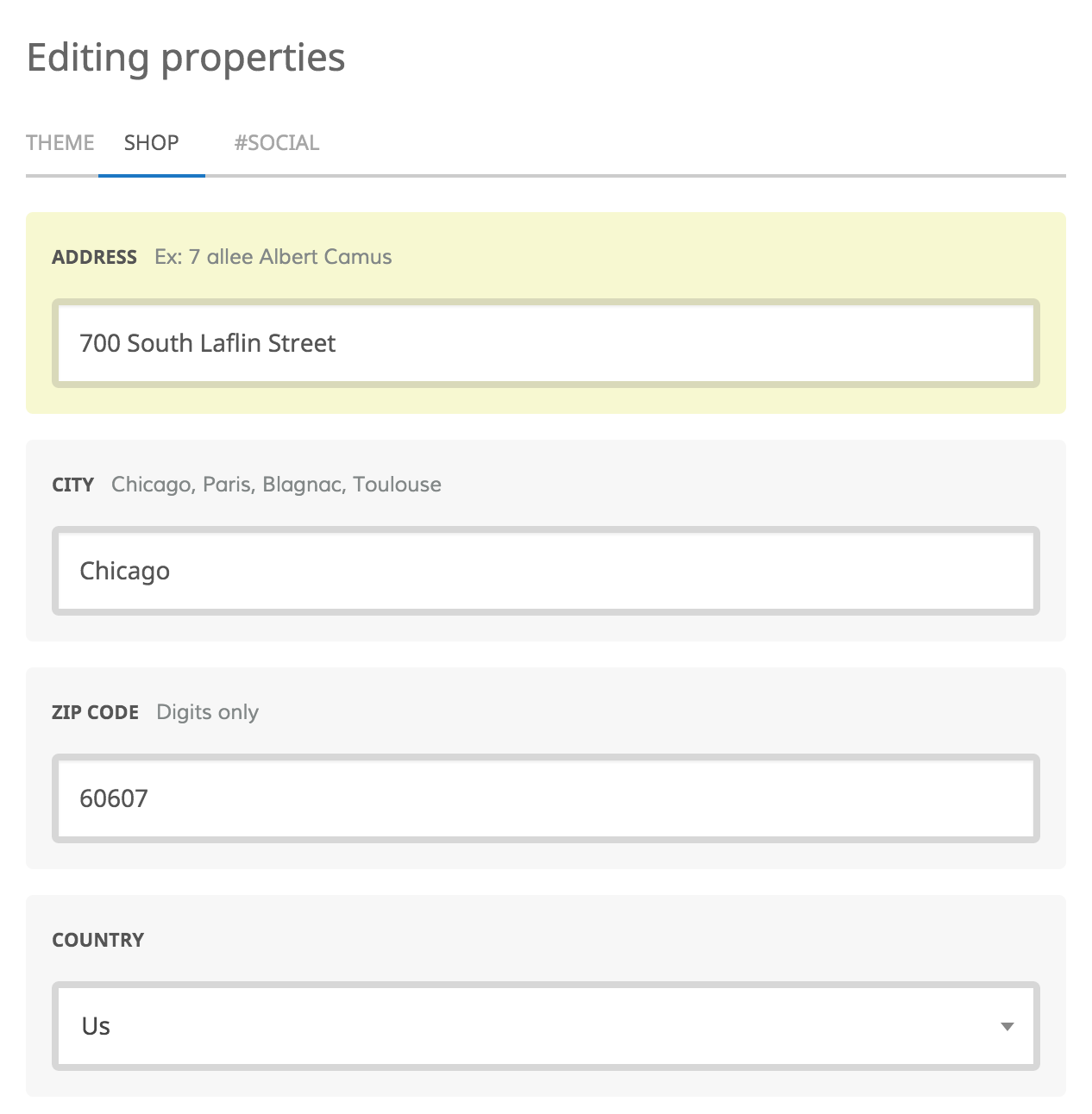
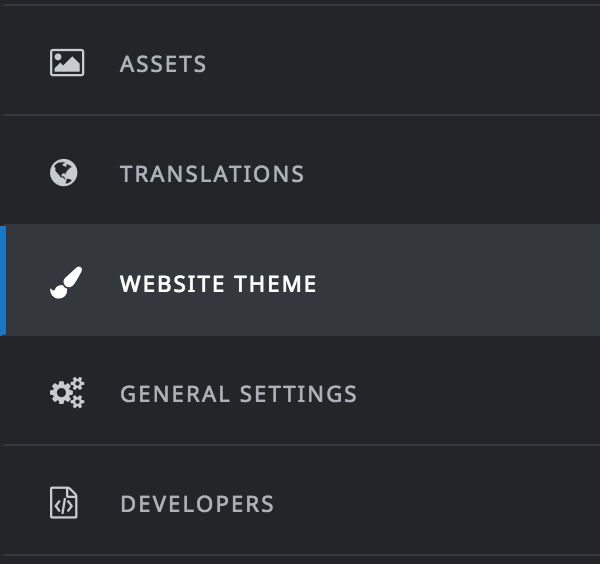
Once your Wagon site has been deployed, you will see a new section named Properties in the left sidebar of your site back-office. In the example below we named the tab Website theme.
If you click on it, you will then see the UI generated from your YAML schema file.